This blog post is the second part on classing students in summer school. If you would like to understand more about how to manually class students using a spreadsheet, click here: Summer school: Classing
***
If you work as a Director of Studies in an English language summer schools, you will already know how much time is spent creating class groups. In most instances, new students are level tested on a Monday and based on the results, are added to the list of existing students who have already had at least one week of classes. As student numbers typically ebb and flow, this process needs to be repeated weekly. Unlike year-round schools, summer schools have a constant fluctuation of students arriving and departing at the weekends.
When creating class groups, some Directors of Studies like to remove outgoing students and slot the new intake into what are already formed cohort groups. Personally, I think it’s better to strip everything back and start the process again from scratch every week. This is because there is always the need to compromise on the make-up of a cohort group – think a 17-year-old beginner who can’t join the beginner’s class as the students are all 11 and 12 years old and therefore has to be placed with older intermediate students, or the class with a good nationality mix but a very broader spectrum of abilities. The point I’m making is that rolling the dice again every week, allows an opportunity to create a better fit after some students have left and others have joined. There is always room for improvement.
In order to create class groups, we should have some criteria. I think it’s not unreasonable to say that we want:
- Ages to be similar. We try to keep ages similar because a 10-year-old and a 17-year-old learn in different ways and have different interests.
- Levels to be similar. We can and typically do have mixed ability classes but if we are able to match students who are approximately at the same stage of language development, it makes the teacher’s job easier. I realise this is a broad statement because there is always the need to differentiate, but if we can avoid placing student who have very little English with those who have much more English, we probably should be doing so.
- Nationalities, or rather each student’s mother tongue, to be different. In the spirit of promoting an English language and culturally rich environment, this is not a bad idea. It also might be a stipulation and written into your organisation’s marketing literature, meaning you have to do it.
If I think about the complaints I have received over the years, the majority have been related when the above points have not been met, e.g.:
There are too many young kids in my class…
There are students who can’t speak in English. They just speak in their own language…
Everyone in my class speaks Spanish! I want to move to a different group!
Meeting this criteria: similar ages, similar levels, and different nationalities is not without its challenges – it’s a little but like pushing square pegs into round holes and there may be a need to compromise, hence the need to start it all over again in the following week to get a better fit.
Having similar ages is the priority. Like with the example above, we don’t want a 17-year-old joining a group of young learners. It’s just not fair on the student or the rest of the class; it also poses a welfare issue. This 17-year-old would be better placed in a group with similarly aged students even if they are of a higher level. Trying to keep students within 3 years of each other is sensible- 4 years at a push.
When considering level, remember there will naturally be a broader spectrum of abilities in any cohort group, more than might be expected in a year-round language school. Summer school is really about oral communication and not about written discourse, or language awareness.
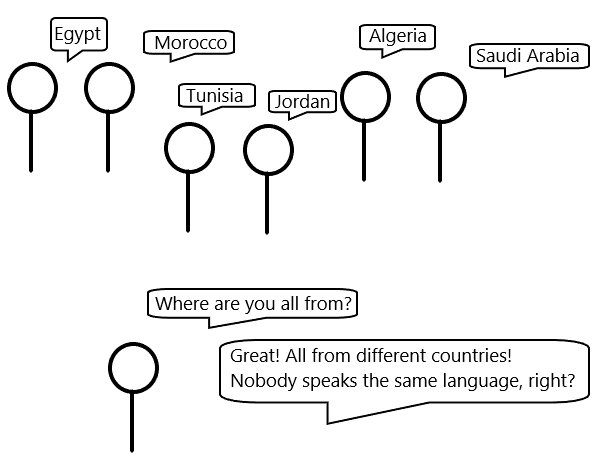
When attempting to mix nationality groups, be aware that many might speak the same mother tongue or use it as a second language, even if they are not from the same country. It’s relatively easy to spot if everyone in a class group is Italian- they will all speak Italian! But if you have a class with students from the Maghreb countries, France, and parts of Belgium, the de facto lingua franca is French. The argument that they are all from different countries won’t cut the mustard and often leads to complaints.
***
Having spent many years looking at ways to assist the process of creating class groups, I started looking at ways to partially automate the process. There are a number of moving parts such as tidying and organising data into a usable form before it can be manipulated. Thankfully, a lot of these processes are repetitive which means they can be automated and save time. Done manually, it can be a protracted affair; it could potentially be many hours of work getting from raw data to printable student class lists. If you are working in a summer school with classes on either side of the day, i.e., morning and afternoon, you could be engaged in this process for 8 hours or longer if you don’t have any tools to help the process along.
Any tools or techniques that can reduce the amount of time spent doing this task is worthwhile. As I said before, we can only partially automate the process; with so many variables, I don’t think it would be possible to go from data to class lists with a touch of a button. However, it is possible to create a program to do most of the legwork and enable the user to quickly manipulate data to create cohort groups.

Creating such a tool has been years in the making but I now have a program that will tidy, calculate, and allow the user to manipulate data easily. Download the program here: Class list generator. If you need some example data, click here: Example data.


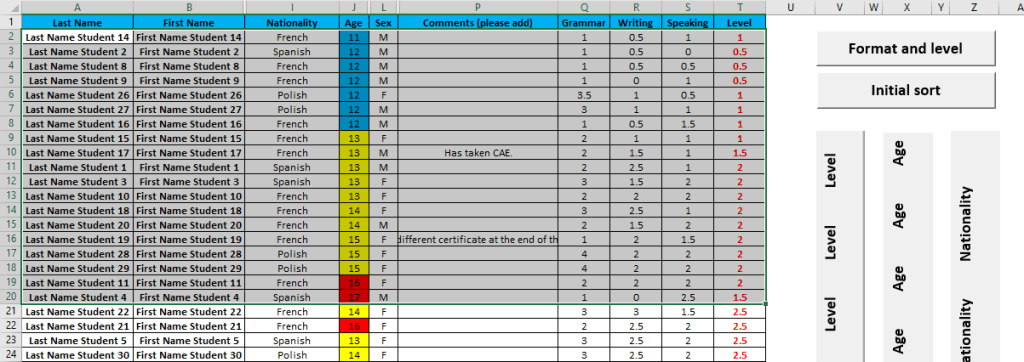
The spreadsheet allows three numerical scores to be added in columns Q to S. It’s not essential to add three scores* per student, two of the three columns could be left empty. Similarly, the data headers: Grammar, Writing, and Speaking can be changed to reflect different criteria. Leave column T blank as the program will:
- Add a student’s scores together in columns R and S, e.g., 2 for writing and 1.5 for speaking = 3.5.
- Divide the number by 2, e.g., 3.5/2=1.75.
- Round up the score to .5, e.g., 1.75 rounded up becomes 2, which is the overall level**.


Clicking the Format and level button:
- Removes all leading, trailing, extra spaces between names in columns A and B.
- Capitalises the first letter of every name in columns A and B.
- Colour codes ages for ease of reference in column J: Blue = 12 and under; yellow = 13-15; red = 16-17; green = 18 and over.
- Calculates the length of stay of every student in column O.
- Standardises the font and text alignment.
- Calculates the level in column T and highlights it in red font.
- Hides columns which are typically not used during the classing process.
Now click the Initial sort button.


Once a class group has been established:
- Insert a new line by clicking on the row header underneath the last student in the group.
- Press CTRL SHIFT +, or right mouse click and Insert.
- Click on the row header in row 1.
- Copy the row headings by pressing CTRL C, or right mouse click and Copy.
- Paste the row headings into the blank space created underneath the last student in the group by pressing CTRL P, or right mouse click and Paste.
- Move onto the next students in the list, repeating the process of using the buttons to shuffle students by level, age, nationality, and making manual changes if necessary to create the next cohort group.
Here’s a video showing the process:
When you have finished, copy (CTRL C, or right mouse click and Copy) and paste (CTRL P, or right mouse click and Paste) your class lists into your registers.
Notice some columns have been hidden. To unhide, select all columns from A to T, right mouse click, and click Unhide. If any columns are deemed extra, they can be deleted at this point.
At some point, new student groups will need to be created comprising of existing students and a new student intake. Follow the steps up to and including pressing the Format and level button with new students, then add any existing students to continue the process.
Download the program here: Class list generator

Struggling to activate the program? Click here for help.
* I always use a score system from 0 – 5 but any whole number or fraction would also work. Score system: 0 = beginner; 0.5 = beginner/elementary; 1 = elementary; 1.5 = elementary/pre-intermediate; 2 = pre-intermediate; 2.5 = pre-intermediate/intermediate; 3 = intermediate; 3.5 = intermediate/upper-intermediate; 4 = upper-intermediate; 4.5 = upper-intermediate/advanced; 5 = advanced.
** The formula for this calculation is =ROUNDUP(SUM(#REF#REF),0/2. Although this is done automatically, its practical application in cell T2 would be, =ROUNDUP(SUM(R2:S2),0)/2. The formula is automatically populated in column T where this is data in the adjacent cells. The level only includes scores in columns R and S but if you wished to extend this formula to include three scores in columns Q to S, you would need to manually put this formula, =ROUNDUP(SUM(Q2:S2),0)/2 into cell T2, after clicking Format and Level. Then drag and hold the fill handle in the cell down to all other cells in the range. You may want to remove the formula by pasting the values. You can do this by selecting the formulas in the range, CTRL C to copy, or right mouse click and Copy. Right mouse click and paste the Values.
You have 136 students and 10 teachers. Want to work out how many should go in each group? Have a look at this tool: Class ratio calculator
Do your teachers share classes? Do you have an odd number of teachers? This tool might help: Three-way split generator
Do you have dates of birth but don’t have student ages? This might help: Age calculator
Working in summer school? I’ve been doing it longer than I care to remember! Click here for further ideas and burnt offerings! Summer school ideas
Need a board game to compliment that activity you are doing this afternoon? Look no further than here: Games and board games
 EFL Summer School
[…] The starting point is this blog post, Summer school: Classing where I discuss my experiences on how to manually class students using a spreadsheet. The second part delves deeper into the topic and introduces a tool to partially automate the process: Class list generator. […]
LikeLike